Overview
As part of an upcoming security enhancement, all GiveSmart Global Admins will be required to reset their password beginning the week of March 23. This update helps ensure a more secure and unified login experience across GiveSmart products.
When the update begins, Global Admins will receive an automated email with step-by-step instructions to complete their password reset.
What to expect
- You will receive an email from Momentive Password Support (noreply@momentiveiq.com)
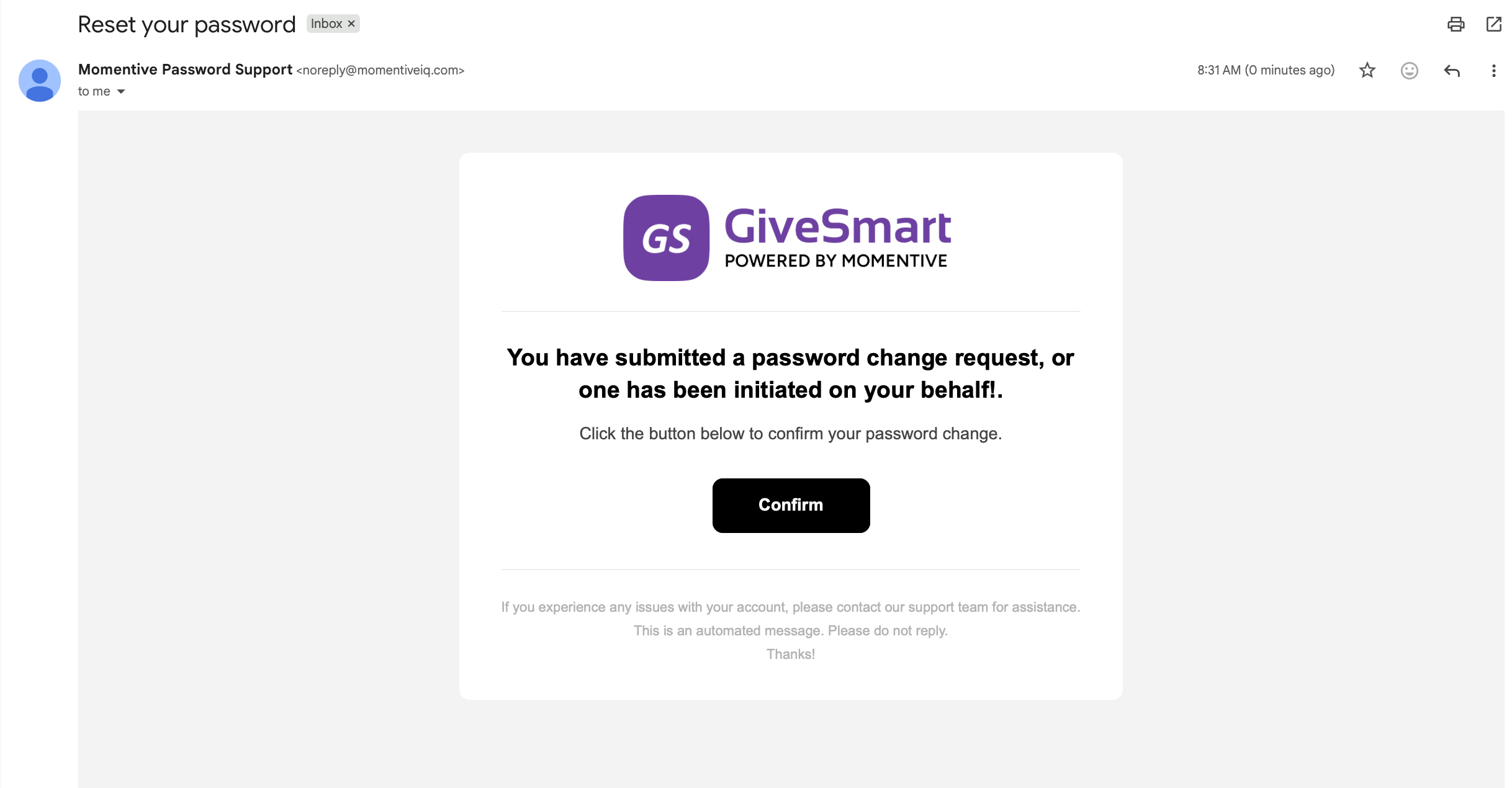
- The email will prompt you to set or reset your password.
- Simply follow the instructions in the email to complete the process.
If possible, please allowlist noreply@momentiveiq.com to help ensure password reset emails are delivered successfully and not blocked by spam filters.
The password reset email will expire after 7 days
If you select “Trouble signing in” to request a new password reset email:
Please allow up to 10 minutes for the email to arrive
Be sure to check your junk/spam folder before requesting another email
Avoid submitting multiple requests in a short period to prevent delays or duplicate emails
After resetting your password
To avoid login issues:
- Sign out of all GiveSmart products.
- Close any open browser tabs or windows.
- Open a new browser window (or use an incognito/private window).
- Log in using your newly reset password.
This clears older login sessions and prevents errors when switching products.
Accessing GiveSmart
If you have access to one account
- You’ll be taken directly to your dashboard after logging in.
If you have access to multiple accounts
- You’ll be prompted to choose which account to work in.
- You can switch accounts anytime—no logout required.
Switching Between Modules
Use the Application Switcher (9-dot menu) in the top-right corner to move between Donor CRM, Events, and Fundraise.
- No additional login required.
- If you manage multiple accounts, you may be asked to confirm which one is correct.
Frequently Asked Questions (FAQs)
My password reset link expired—what should I do?
Click “Trouble signing in” on the login page to request a new reset email.

I reset my password, but still see a login error. Why?
Your browser likely has an older GiveSmart session saved.
Fix: Close all GiveSmart tabs, open a new (or incognito) window, and log in again.
I’m not receiving the password reset email. What should I do?
If you requested a password reset but do not see the email in your inbox, please try the following steps:
1. Check your Junk or Spam folder
Sometimes, automated emails may be filtered by your email provider. Please check your Spam or Junk folder for the password reset email.
2. Check your email security or filtering service
If your organization uses an email security service such as Mimecast, the message may be held in that system’s quarantine or filtering queue. Please review your Mimecast or similar email filtering dashboard.
3. Allow-list the sending domain
Your IT team may need to allow emails from our system. Ask them to allow-list the following sender address or domain to ensure future messages are delivered: noreply@momentiveiq.com
4. Try requesting the reset again
If you still do not see the email, use the “Trouble signing in?” or password reset option again and allow a few minutes for the email to arrive.
5. Contact support if the issue continues
If you have completed the steps above and still have not received the email, please contact your organization’s administrator or support team for assistance.
Why am I seeing an error when switching between GiveSmart applications?
This error is usually caused by multiple active login sessions or stored browser data.
1. Check for multiple sessions
Make sure you are not logged into GiveSmart in other tabs or browser windows. Running two sessions at the same time can cause conflicts when switching applications.
Close other GiveSmart tabs or browsers
Log out and sign in again
2. Clear your browser cache
Stored browser data can interfere with switching between applications.
Clear your browser cache and cookies
Restart your browser and sign in again
Why am I asked to log in again when switching products?
You likely didn’t select “Remember me” during login.
What if my session times out?
You’ll be prompted to log in again through MomentiveIQ Identity.
I forgot my password—what do I do?
Use the “Trouble signing in” link on the login page.